
Making Bash Scripts Executable
Learn how to make bash scripts executable using chmod command with both symbolic and octal notation. Covers file permissions, practical examples, and best practices for script execution.

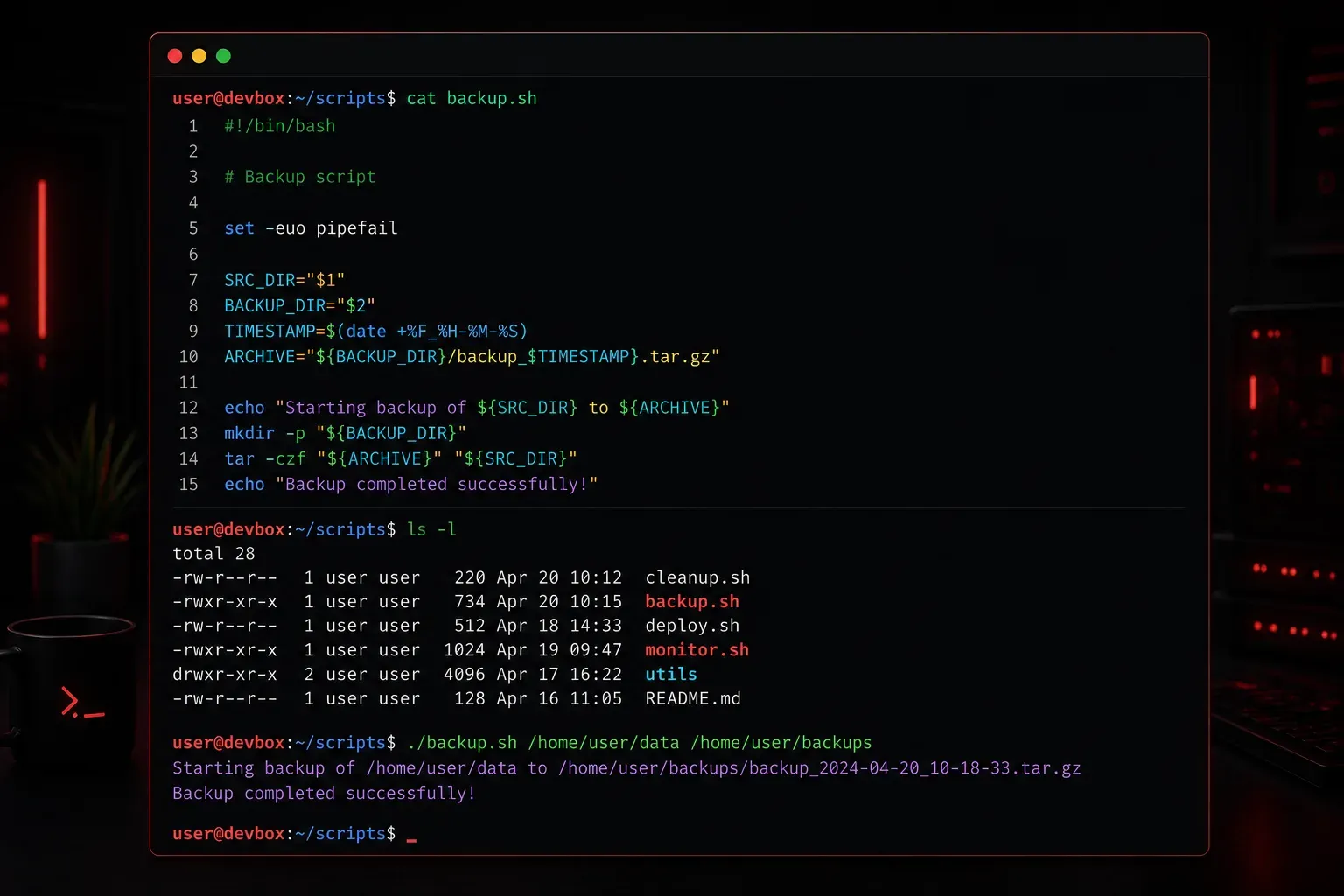
When you write your first bash script, you might run into a frustrating problem: you can't execute it directly. You've created a file with all the right commands, but when you try to run it, you get a "permission denied" error. This happens because, by default, newly created files don't have execute permissions in Linux systems.
Understanding file permissions is crucial for working with bash scripts. In Unix-like systems, every file has three types of permissions for three categories of users: read (r), write (w), and execute (x) permissions for the owner, group, and others.
Understanding the Problem
Let's start with a simple example. Create a basic bash script called hello.sh:
#!/bin/bash
echo "Hello, World!"
If you try to run this script directly, you'll encounter an error:
$ ./hello.sh
bash: ./hello.sh: Permission denied
You can check the current permissions of your file using the ls -l command:
$ ls -l hello.sh
-rw-rw-r-- 1 user user 32 Dec 15 10:30 hello.sh
The first column shows the permissions. The first character indicates the file type (- for regular file), followed by three groups of three characters each representing owner, group, and other permissions. Notice there's no 'x' (execute) permission anywhere.
The chmod Command
The chmod (change mode) command is your tool for modifying file permissions. There are two ways to use it: symbolic notation and octal notation.
Symbolic Notation
The most straightforward way to make a script executable is using symbolic notation:
$ chmod +x hello.shThis adds execute permission for all users (owner, group, and others). You can be more specific:
$ chmod u+x hello.sh    # Add execute permission for user (owner) only
$ chmod g+x hello.sh    # Add execute permission for group
$ chmod o+x hello.sh    # Add execute permission for others
You can also combine these:
$ chmod ug+x hello.sh # Add execute permission for user and groupOctal Notation
Octal notation uses numbers to represent permissions. Each permission has a value: read (4), write (2), execute (1). You add these values together:
- 7 (4+2+1) = read, write, execute
- 6 (4+2) = read, write
- 5 (4+1) = read, execute
- 4 = read only
To make a script executable by everyone with full permissions for the owner:
$ chmod 755 hello.shThis gives the owner read, write, and execute permissions (7), while group and others get read and execute permissions (5).
Verifying the Change
After changing permissions, verify the change worked:
$ ls -l hello.sh
-rwxr-xr-x 1 user user 32 Dec 15 10:30 hello.sh
Notice the 'x' characters now present in the permission string. Now you can execute your script:
$ ./hello.sh
Hello, World!
Best Practices
When making bash scripts executable, consider these practices:
- Always include a shebang line (
#!/bin/bash) at the top of your script - Use
chmod +xfor simplicity unless you need specific permission control - Be mindful of security - don't give execute permissions to scripts that others shouldn't run
- Place executable scripts in your PATH (like
/usr/local/bin) to run them from anywhere
Remember, you can always run a bash script without making it executable by calling bash directly:
$ bash hello.shHowever, making scripts executable is the standard practice and allows for cleaner execution.
What's Next
Now that you can make your bash scripts executable, the next step is learning about script arguments and parameters. Understanding how to pass information to your scripts will make them much more flexible and useful for real-world automation tasks.