
Searching for Files in Linux with Find
Learn how to effectively search for files in Linux using the powerful find command. This beginner-friendly guide covers essential options like searching by name, size, type, and time, plus practical examples for combining criteria and executing actions on found files.

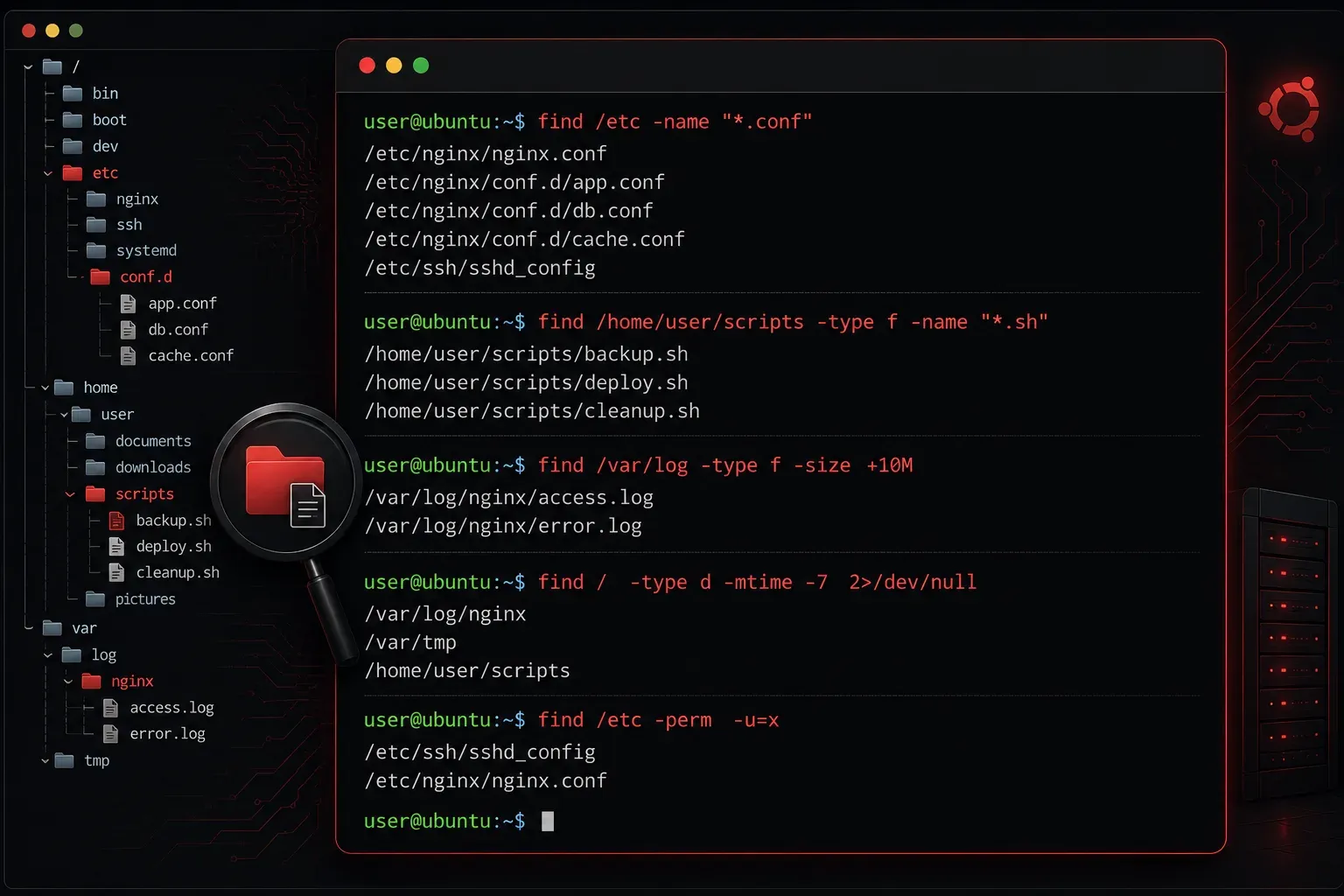
One of the most powerful tools in a Linux administrator's toolkit is the find command. Whether you're looking for a configuration file buried deep in the filesystem or trying to locate all files modified in the last week, find can help you locate exactly what you need.
Understanding the Find Command Structure
The basic syntax of the find command follows this pattern:
find [path] [expression]The path tells find where to start searching, and the expression defines what you're looking for. If you don't specify a path, find starts from your current directory.
Let's start with a simple example:
find /home -name "*.txt"This command searches the /home directory and all its subdirectories for files ending with .txt.
Essential Find Options
Searching by Name
The -name option is case-sensitive and supports wildcards:
find . -name "config.conf"
find /etc -name "*.conf"
find ~ -name "Document*"
For case-insensitive searches, use -iname:
find /home -iname "readme*"Searching by File Type
Use -type to specify what kind of files you want:
f- regular filesd- directoriesl- symbolic links
find /var/log -type f -name "*.log"
find /home -type d -name "Downloads"
Searching by Size
Find files based on their size using -size:
find /tmp -size +100M        # Files larger than 100MB
find /home -size -1k         # Files smaller than 1KB
find . -size 50c             # Files exactly 50 bytes
Size units include: c (bytes), k (KB), M (MB), G (GB).
Searching by Time
Find files based on modification time:
find /var/log -mtime -7      # Modified in last 7 days
find /home -mtime +30        # Modified more than 30 days ago
find /tmp -mmin -60          # Modified in last 60 minutes
Combining Multiple Criteria
You can combine multiple search criteria using logical operators:
# Find large log files modified recently
find /var/log -name "*.log" -size +10M -mtime -1

# Find either .txt or .doc files
find /home -name "*.txt" -o -name "*.doc"

# Find files NOT owned by current user
find /home -not -user $(whoami)
Executing Actions on Found Files
The real power of find comes from executing actions on the files it discovers:
# Delete old temporary files
find /tmp -name "*.tmp" -mtime +7 -delete

# Copy all PDF files to a backup directory
find /home -name "*.pdf" -exec cp {} /backup/ \;

# List detailed information about found files
find /etc -name "*.conf" -exec ls -l {} \;
The {} placeholder represents each found file, and \; terminates the command.
Practical Examples
Here are some real-world scenarios where find shines:
# Find all executable files in your PATH
find /usr/bin -type f -executable

# Locate configuration files in /etc
find /etc -name "*.conf" -o -name "*.cfg"

# Find empty directories
find /home -type d -empty

# Find files with specific permissions
find /var -perm 755
Performance Tips
To make your searches more efficient:
- Start from the most specific directory possible
- Use
-maxdepthto limit how deep find searches - Put the most restrictive criteria first
find /var/log -maxdepth 2 -name "*.log" -size +1MWhat's Next
Now that you've mastered the find command, you're ready to explore more advanced file manipulation tools. In our next post, we'll dive into text processing with grep, sed, and awk to help you search within files and manipulate their contents efficiently.