
Troubleshooting Common Network Appliance Issues
This post walks beginners through a methodical approach to troubleshooting common network appliance issues, covering problems like no connectivity, intermittent drops, slow performance, and management access failures. It uses practical CLI commands and a repeatable troubleshooting workflow grounded

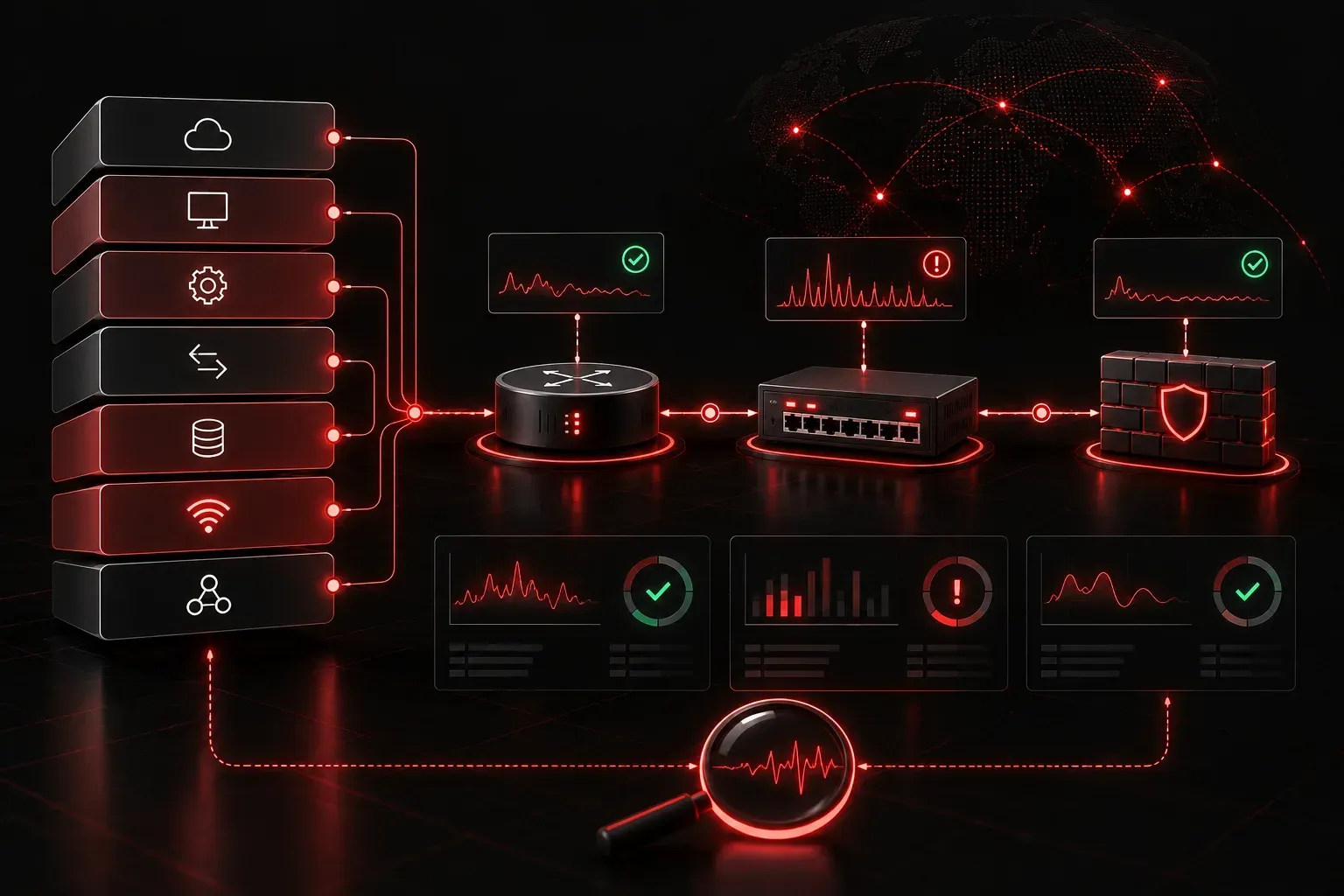
When something stops working on a network, the pressure to fix it fast can be overwhelming. But experienced engineers will tell you: good troubleshooting is methodical, not frantic. In this post, we will walk through common network appliance problems and the practical steps you can take to resolve them, even if you are just starting out.
What Is a Network Appliance?
A network appliance is a dedicated piece of hardware designed to perform a specific networking function. This includes routers, switches, firewalls, wireless access points, load balancers, and even network-attached storage devices. When one of these devices has a problem, it can affect everything connected to it, which makes troubleshooting network appliances one of the most important skills you can develop.
Start With the Basics: The OSI Model as Your Guide
Before diving into specific problems, it helps to have a framework. The OSI model gives you a logical starting point. Most beginner troubleshooting starts at Layer 1 (Physical) and works upward. Ask yourself:
- Is the device powered on and showing the correct indicator lights?
- Are the cables properly seated and undamaged?
- Is the correct interface active and showing a link?
Skipping this step wastes time. Many network issues turn out to be a loose cable or a device stuck in a reboot loop.
Common Appliance Problems and How to Fix Them
1. No Connectivity at All
If a device cannot reach the network at all, start at the physical layer. Check the link light on both the appliance port and the switch port it connects to. No light usually means a physical problem: a bad cable, a failed port, or a power issue.
If the link light is on but there is still no connectivity, check the IP configuration. On a Windows machine, you can use:
ipconfig /allOn Linux or macOS:
ip addr showLook for a valid IP address, subnet mask, default gateway, and DNS server. A 169.254.x.x address means the device failed to get an address from a DHCP server, which is a very common appliance problem.
2. Intermittent Connectivity
Intermittent drops are frustrating because they are hard to reproduce. Common causes include:
- Duplex mismatch: One side of a connection is set to full-duplex while the other is at half-duplex, causing collisions and packet loss.
- Faulty cable or connector: A damaged cable may work sometimes but fail under load.
- Overloaded appliance: A firewall or router pushed beyond its rated throughput will drop packets.
Use the ping command with a higher packet count to test for intermittent loss:
ping -n 100 8.8.8.8If you see scattered timeouts, suspect a physical layer issue or resource exhaustion on the appliance.
3. Slow Network Performance
Slow performance does not always mean a broken device. Check interface error counters on your switch or router. Excessive CRC errors or input errors point to a bad cable or NIC. High CPU utilization on a firewall or router suggests the appliance is being overwhelmed.
4. Device Not Responding to Management Access
If you cannot reach a switch or router via SSH or its web interface, verify:
- You are using the correct management IP address.
- The management interface is up and configured correctly.
- A firewall or ACL is not blocking your access.
- The management service (SSH, HTTPS) is actually enabled on the device.
A Simple Troubleshooting Workflow
When facing any appliance problem, use this repeatable process:
- Define the problem clearly: what is broken, what is working?
- Check physical connections and power.
- Verify IP configuration and reachability with
pingandtraceroute. - Review device logs for error messages.
- Test with known-good hardware (swap a cable, try a different port).
- Document what you changed and the result.
This methodology is the foundation of beginner troubleshooting and it scales all the way up to enterprise-level incidents.
What's Next
Now that you have a solid framework for troubleshooting network appliances, the next step is understanding the specific protocols and services that run on those appliances. Coming up, we will cover DNS, DHCP, and how misconfigurations in these services cause some of the most common network issues you will ever encounter.
Tools and resources for this topic
- CompTIA Network+ Study Guide — Comprehensive N10-009 exam preparation covering all five domains.