
Viewing File Contents in Linux
Learn essential Linux commands for viewing file contents including cat, less, head, and tail. Covers practical examples for examining configuration files, monitoring logs, and navigating large documents effectively.

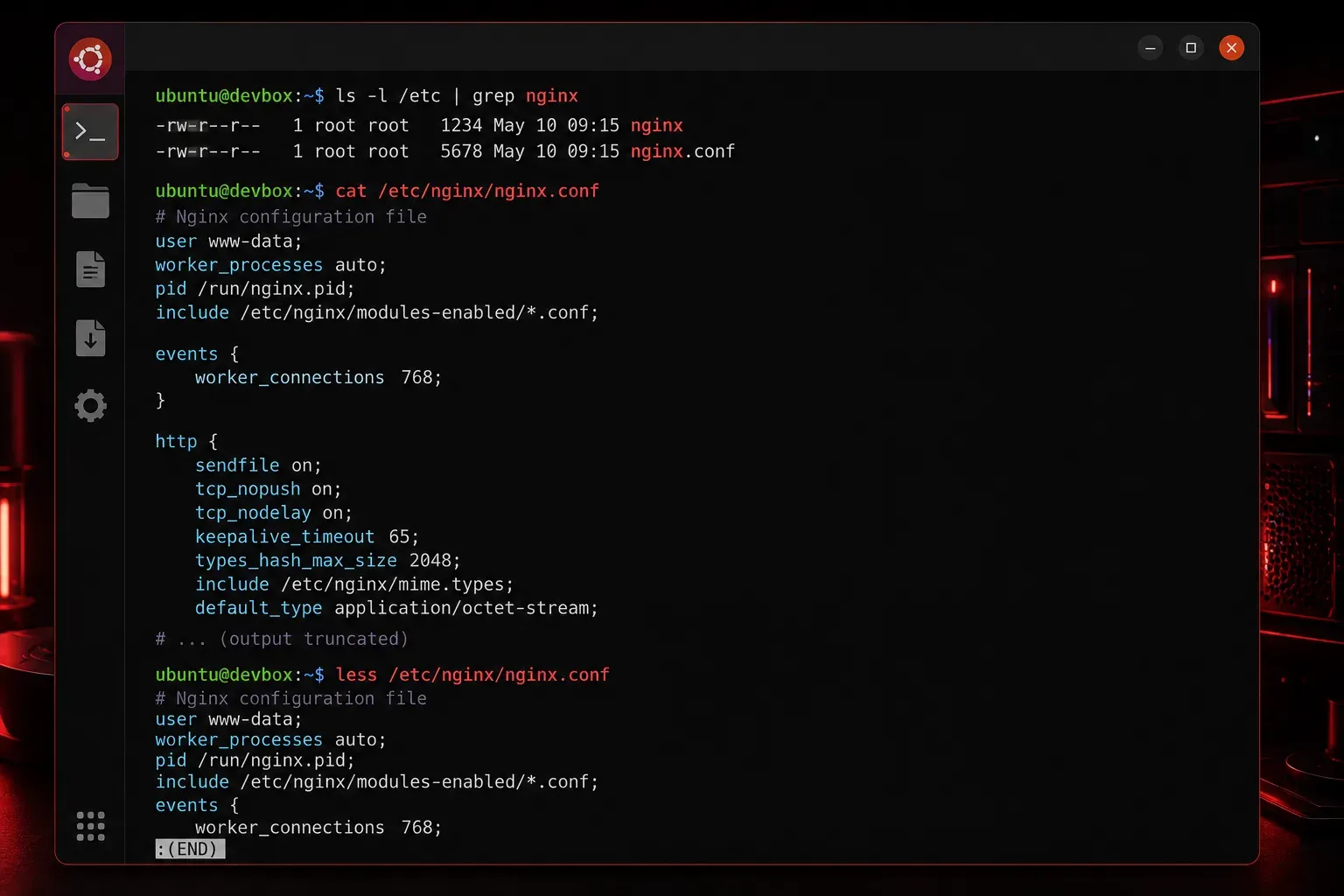
One of the most fundamental skills in Linux is knowing how to view the contents of files without opening them in an editor. Whether you're examining configuration files, reading log entries, or quickly checking script contents, Linux provides several powerful commands to display file contents in different ways.
The Essential File Viewing Commands
Linux offers multiple commands for viewing file contents, each designed for specific situations and file types.
cat - Display Complete File Contents
The cat command is the most straightforward way to display the entire contents of a file. It's perfect for small files where you want to see everything at once.
cat filename.txtFor example, to view a configuration file:
cat /etc/hostnameYou can also view multiple files at once by listing them after the command:
cat file1.txt file2.txtless - Navigate Through Large Files
When dealing with large files, cat can overwhelm your terminal. The less command displays file contents one screen at a time, allowing you to navigate through the document.
less /var/log/syslogInside less, you can use these navigation keys:
- Space or Page Down: Move forward one screen
- b or Page Up: Move backward one screen
- Arrow keys: Move line by line
- /: Search for text (type
/searchterm) - q: Quit and return to terminal
head - View the Beginning of Files
The head command shows the first 10 lines of a file by default. This is extremely useful for checking file headers or getting a quick preview.
head /etc/passwdYou can specify how many lines to display using the -n option:
head -n 20 /var/log/syslogtail - View the End of Files
The tail command displays the last 10 lines of a file, making it perfect for checking recent log entries or the end of large files.
tail /var/log/auth.logLike head, you can specify the number of lines:
tail -n 50 /var/log/syslogThe -f option with tail is particularly powerful for monitoring files in real-time:
tail -f /var/log/syslogThis "follows" the file, showing new lines as they're added. Press Ctrl+C to stop following.
Practical Examples and Use Cases
Examining System Configuration
Check your system's DNS configuration:
cat /etc/resolv.confView network interfaces (first 15 lines):
head -n 15 /etc/network/interfacesMonitoring Log Files
Check recent system messages:
tail -n 25 /var/log/messagesMonitor authentication attempts in real-time:
tail -f /var/log/auth.logQuick File Inspection
When you find a script or configuration file, use less to examine its contents safely:
less /etc/crontabTips for Effective File Viewing
Combine commands with pipes: You can enhance these commands using pipes. For example, search for specific content:
cat /etc/passwd | grep usernameUse wildcards: View multiple similar files:
cat *.txtHandle binary files carefully: These commands work best with text files. Binary files may display strange characters and could affect your terminal.
What's Next
Now that you can view file contents, the next logical step is learning how to search within those files effectively. In our next post, we'll explore the grep command and other powerful text search tools that will help you find specific information within files quickly and efficiently.