
Troubleshooting Network Issues on Linux Servers
Learn systematic network troubleshooting on Linux servers using essential tools like ip, ping, netstat, and firewall commands. This guide covers step-by-step diagnosis from physical layer to application services.

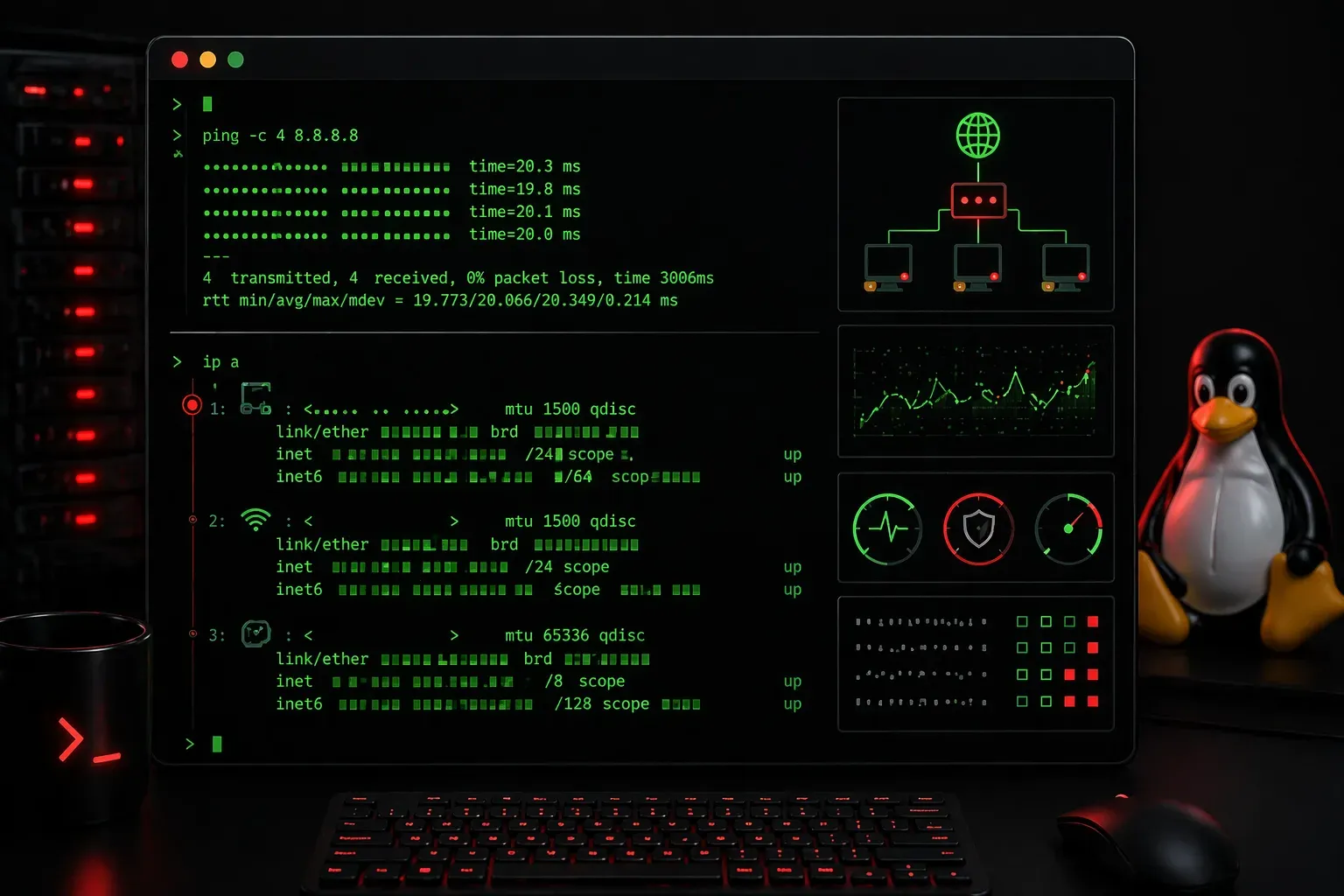
When your Linux server suddenly can't reach the internet or users can't connect to your services, systematic network troubleshooting becomes essential. As a Linux administrator, you'll encounter connectivity problems regularly, but with the right approach and tools, you can identify and resolve these issues efficiently.
%%SKIP_0%%
This command displays all network interfaces and their configurations. Look for your primary interface (usually eth0 or enp0s3) and verify it shows UP status with a valid IP address.
If the interface is down, bring it up manually:
sudo ip link set eth0 upCheck the physical connection by examining the interface statistics:
cat /sys/class/net/eth0/operstate
cat /sys/class/net/eth0/carrier
The first command should return "up" and the second should return "1" if the cable is properly connected.
Verify IP Configuration and Routing
Once you confirm the interface is operational, examine your IP configuration. Use ip route show to display the routing table:
ip route showEnsure you have a default route (typically showing default via followed by your gateway IP). If missing, add it manually:
sudo ip route add default via 192.168.1.1Test basic connectivity to your gateway using ping:
ping -c 4 192.168.1.1If the gateway responds, test external connectivity:
ping -c 4 8.8.8.8DNS Resolution Testing
Many connectivity problems stem from DNS issues rather than actual network problems. Test DNS resolution using multiple methods:
nslookup google.com
dig google.com
host google.com
If DNS queries fail, check your /etc/resolv.conf file:
cat /etc/resolv.confYou should see entries like nameserver 8.8.8.8. If missing or incorrect, edit the file or configure your network manager to use proper DNS servers.
Advanced Troubleshooting with Network Tools
For more complex connectivity problems, use traceroute to identify where packets are being dropped:
traceroute google.comThis shows the path packets take to reach their destination. Each numbered line represents a hop (router) in the path. Look for timeouts (indicated by * * *) that might indicate routing issues or firewall blocks. High response times at specific hops can identify bottlenecks, while consistent timeouts starting at a particular hop suggest the issue lies there or beyond.
For examining active connections and listening services, modern Linux systems use ss instead of the deprecated netstat:
sudo ss -tlnpThis displays all listening TCP ports (-t), with numerical addresses (-n), without resolving names (-l), and shows process IDs (-p). While netstat still works on most systems, ss is faster and provides more detailed information about socket states.
Checking Firewall Configuration
Firewall rules often cause connectivity problems. Check your firewall status:
sudo ufw status
sudo iptables -L
For systems using firewalld:
sudo firewall-cmd --list-allIf you suspect firewall issues, temporarily disable it for testing:
sudo ufw disableImportant: After completing your tests, always re-enable the firewall to maintain security:
sudo ufw enableNever leave your server running without firewall protection in production environments.
Service-Specific Troubleshooting
When specific services aren't accessible, check if they're running and listening on the correct ports:
sudo systemctl status apache2
sudo ss -tlnp | grep :80
Review service logs for error messages:
sudo journalctl -u apache2 -fThe -f flag follows the log in real-time, helpful for watching connection attempts.
What's Next
Now that you understand basic network troubleshooting techniques, the next step is mastering log analysis and monitoring tools. We'll explore how to use system logs, configure log rotation, and implement monitoring solutions to proactively identify network issues before they impact users.
Tools and resources for this topic
- CompTIA Linux+ Study Guide — Comprehensive Linux+ exam preparation covering system administration, security, and scripting.